Your First Express Server
Your First Express App: Complete Guide 🚀
Ready to build your first Express server? This guide walks you through every single step from zero to a working API!
What You'll Build
By the end of this tutorial, you'll have:
- ✅ A working Express server
- ✅ Your first API endpoint
- ✅ Auto-restart on code changes (nodemon)
- ✅ Ability to test APIs with Postman
The Journey (Step by Step)
Step 1: Install Node.js → Step 2: Create Project → Step 3: Install Express
    ↓                          ↓                        ↓
Step 4: Write Code → Step 5: Run Server → Step 6: Test API
Time needed: 15-20 minutes
Step 1: Setup Development Environment ⚙️
First, you need to download Node from the official website and install it. It also installs npm (Node Package Manager) by default.
What is Node.js?
- Runtime that lets JavaScript run outside the browser
- Required for backend development
- Comes with npm (package installer)
The npm is the world's largest software registry. We'll be using npm to install packages, but you can also use yarn (another package manager) to install packages.
After installing Node, you could check if it installed correctly or not. Open cmd (or terminal) and type the below command.
node -v
If you installed Node correctly, it will print the current installed version of Node.
For example:
v14.17.0
To check the npm version type the below command.
npm -v
yarn is another package manager, it is faster than npm. You can install yarn by typing the below command.
npm install -g yarn
NPM is the default package manager for Node.js. Yarn is a new package manager that replaces the existing workflow for the npm client or other package managers while remaining compatible with the npm registry. It has the same feature set as existing workflows while operating faster, more securely, and reliably.
Next, you need to download an IDE or code editor to develop your node project if you don't have one already. You can use VS Code, or WebStorm or anyone else. I prefer VS Code, it is the most popular code editor in the world, lightweight software, and it's easy to manage projects.
Let's start
Let's start building our first express project 🚀
Create a folder and name this folder myFirstApp. Next, you need to open that directory from your IDE or Terminal. After that, you need to open a terminal in that directory. You can open a terminal in VS Code by pressing Ctrl + Shift + ~ or Ctrl + Shift + \ or View > Terminal.
Create a New Project
Now type the init command in the terminal to create a new project like this:
- npm
- Yarn
- pnpm
- Bun
npm init
yarn init
pnpm init
bun init
It asks for some information about your project, author name, description of the project, license going to use, and git repository-like information. You can set default values by pressing the enter key. You can see in your myFirstApp folder a new file has been created called package.json. If you open this file you can see information about the project.
You can also create a new project by adding the -y flag to the init instead of pressing the enter key every time. You can see the below command:
- npm
- Yarn
- pnpm
- Bun
npm init -y
yarn init -y
pnpm init -y
bun init -y
It will create a new project with default values immediately without asking you anything that it does without the -y flag.
package.json file
npm init creates a package.json file. It's a metadata file containing important information about the project, such as its name, version, description, dependencies, and other related metadata. It is typically located in the root directory of the project and is used by Node.js and npm (Node Package Manager) to manage dependencies, scripts, and other project-related metadata.
It should look like this:
{
  "name": "myfirstapp",
  "version": "1.0.0",
  "description": "",
  "main": "index.js",
  "scripts": {
    "test": "echo \"Error: no test specified\" && exit 1"
  },
  "author": "@mrizwanashiq",
  "license": "ISC"
}
Now we need to tweak a few things in the package.json file. By default, module type is commonjs. commonjs is the default module system in NodeJS, and it uses require to import modules. I want to use ES6 and later versions of JavaScript (which I highly recommend to you as well), so, need to change the type to "type": "module" in the package.json file. It allows to import and export modules like import module from 'path-of-the-modules'. If you don't change this key value, and by default, you'd use const module = require('path-of-the-modules') to import the express module.
{
  "name": "myfirstapp",
  "version": "1.0.0",
  "description": "",
  "main": "index.js",
  "type": "module",
  "scripts": {
    "test": "echo \"Error: no test specified\" && exit 1"
  },
  "author": "@mrizwanashiq",
  "license": "ISC"
}
If you want to learn more about Importing and Exporting modules in NodeJS, read this article.
Install packages (also known as dependencies)
Now, we need to install a package express to create a server. You can install packages by typing the below command in the terminal.
- npm
- Yarn
- pnpm
- Bun
npm install express
yarn add express
pnpm add express
bun add express
After installing the Express you can see a new key called dependencies inside package.json. Inside that, you can see installed dependencies and their versions.
{
  "name": "myfirstapp",
  "version": "1.0.0",
  "description": "",
  "main": "index.js",
  "type": "module",
  "scripts": {
    "test": "echo \"Error: no test specified\" && exit 1"
  },
  "dependencies": {
    "express": "^4.21.2"
  },
  "author": "@mrizwanashiq",
  "license": "ISC"
}
Express 5 has also been released, but these docs target Express 4.x, so you may see a different major version in your package.json.
Installing the package creates a new folder node_modules in your project directory. It contains all the installed packages. You can see the express folder inside the node_modules folder. It contains all the files and folders of the express package. It also creates a new file called package-lock.json in your project directory. It contains information about the installed packages and their dependencies. Our file directory structure looks like this:
myFirstApp
├── node_modules
│ └── express
│ ├── History.md
│ ├── LICENSE
│ ├── Readme.md
│ ├── index.js
│ ├── lib
│ │ ├── middleware
│ │ │ ├── init.js
│ │ │ ├── query.js
│ │ │ ├── router.js
│ │ │ └── serve-static.js
│ │ ├── router
│ │ │ ├── index.js
│ │ │ ├── layer.js
│ │ │ └── route.js
│ │ ├── application.js
│ │ ├── express.js
│ │ ├── request.js
│ │ ├── response.js
│ │ ├── utils.js
│ │ └── view.js
│ ├── package.json
│ └── node_modules
├── package-lock.json
└── package.json
Don't worry about the node_modules folder, and package-lock.json file 😊. You don't need to touch them manually, it is handled by npm automatically. So, simply ignore them, I just wanted to show you what it looks like inside the node_modules folder 😎.
We have been talking about dependencies for a while. Let's talk about them in detail.
What are dependencies?
Dependencies are packages that are required to run your application. For example, if you want to create a server, you need to install the express package. If you want to connect to the database, you need to install mongoose package, etc. These packages are called dependencies. You can install them using the npm install command.
- npm
- Yarn
- pnpm
- Bun
npm install <package-name>
yarn add <package-name>
pnpm add <package-name>
bun add <package-name>
Types of dependencies
There are three types of dependencies:
Both normal and development dependencies are installed at your project level, while global dependencies are installed globally on your PC.
Global Dependencies
Global dependencies are installed globally on your PC. You can use them anywhere on your PC. You can install them using this command
- npm
- Yarn
- pnpm
- Bun
npm install -g <package-name>
yarn global add <package-name>
pnpm add -g <package-name>
bun add --global <package-name>
You can use them in any project. For example, you can install nodemon globally. It is a tool that helps to develop node applications by automatically restarting the node application when file changes in the directory are detected. For example, if you change the code in your project, nodemon automatically restarts the application.
- npm
- Yarn
- pnpm
- Bun
npm install -g nodemon
yarn global add nodemon
pnpm add -g nodemon
bun add --global nodemon
Normal Dependencies
Normal dependencies are installed in your project. You can use them only in your project. You can install them using
- npm
- Yarn
- pnpm
- Bun
npm install --save <package-name>
yarn add <package-name>
pnpm add <package-name>
bun add <package-name>
For example, you can install express as a normal dependency. It is a web application framework for NodeJS.
Development Dependencies
Development dependencies are installed in your project. You can use them only in your project. You can install them using
- npm
- Yarn
- pnpm
- Bun
npm install --save-dev <package-name>
yarn add --dev <package-name>
pnpm add --save-dev <package-name>
bun add --dev <package-name>
For example, you can install eslint as a development dependency. It is a tool that helps to find and fix problems in your JavaScript code.
The key difference between normal and development dependencies is that development dependencies are not installed when you deploy your project. You can use them only in development. For example, you can install eslint as a development dependency. It is a tool that helps to find and fix problems in your JavaScript code. Normal dependencies are installed in both development and production.
When you install a package, it installs the latest version of that package. If you want to install a specific version of a dependency for example you want to install express version 4.21.2 you can use the below command.
- npm
- Yarn
- pnpm
- Bun
npm install express@4.21.2
yarn add express@4.21.2
pnpm add express@4.21.2
bun add express@4.21.2
This is not important for now, this is just for your information.
Create index.js
Next, we need to create a file named index.js to write the server-side implementation. You need to create this file inside the myFirstApp directory. Now your file structure is like the below.
myFirstApp
├── node_modules
├── package.json
├── package-lock.json
└── index.js
Inside the index.js file add the below code.
import express from "express";

const app = express();

// controller function

// It takes two parameters, request and response
// request contains all the information about the request
// response contains all the information about the response
function controller(req, res) {
  res.send("Hello World!");
}

// route
// pass the controller function as a callback to the route
app.get("/", controller); // attached controller function to the route

app.listen(5000);
Let's break down the code into small pieces to understand it better.
Import Express
Importing modules is a way to use code from other files in your project. You can import modules from the same project or the node_modules. node_modules is a directory that contains all the installed dependencies. We need express in the index.js file. So, we need to import it.
We can import modules using the import keyword only if you have added "type": "module" in package.json file.
import express from "express";
If you go with the default "type": "commonjs" in package.json, you need to use the require keyword to import modules.
const express = require("express");
As I have changed type to module in the package.json file, I am using the import keyword, and I recommend you to do "type": "module" in package.json file, and use import keyword.
Create an Express Application
Once you have imported express, create an instance of the express application using the express() function.
const app = express();
express() is a function that creates an express application. I created an express application and stored it in a variable app. I will use this app variable to create routes, add middlewares, and listen to the port.
You can create multiple express applications (for example admin panel, user panel, etc.) in a single project and listen to different ports for each application. But in this tutorial, I will create only one express application
Normally you would be creating one express app per project.
Create a GET Request
Once you have created an express application, now it's time to create routes. app.get function is used to create GET routes.
I explained the app.get() function in detail in the Routing and HTTP Methods section, it's the next section.
I created the function controller that takes two arguments req and res. req is the request object, and res is the response object. You can use these objects to get information about the request and send a response to the client.
And then I created a route using app.get function. The first argument is the path, and the second argument is a callback function. The callback function will be called when the route is requested (API is called). I passed the controller function as a callback function. So, when the route is requested, the controller function will be called.
// controller function
function controller(req, res) {
  res.send("Hello World!");
}

// route
app.get("/", controller);
I used the res.send() function to send a response to the client. I sent a string Hello World! as a response. You can read more about them in this section.
You also put the callback function directly in the app.get function.
app.get("/", function (req, res) {
  res.send("Hello World!");
});
Listen to the Port
First of all, what is a port?
A port is a number that can be between 0 and 65535. It's a numerical identifier assigned to a network service (could be a frontend or backend project) that is running on a device used to identify and separate, different applications running on the same computer or server. When you run an application, it needs to listen on a specific port to receive incoming requests and send responses. For example, if your app is running on port 3000 then your address will be like http://localhost:3000, and 80 is the default port for HTTP requests, if you listen to your app on port 80, then your address will be like http://localhost. For every other port, you need to specify the port number in the address like http://localhost:PORT_NUMBER.
Multiple applications can run on a single server or computer, and each application may require a different port number to operate independently. This is because a port can only be occupied by one application at a time, and using different port numbers allows multiple applications to run simultaneously without interfering with each other.
You can use the app.listen() function to listen to the port. The first argument is the port number, and the second argument is a callback function (optional) that will be called when the application is listening to the port.
app.listen(5000);
With callback function:
app.listen(5000, function () {
  console.log("App is listening on port 5000");
});
You can't run two applications on the same port. If you try to run two applications on the same port, you will get an error. Either you need to stop the application that is running on the port, or you need to change the port number. You can stop the application by pressing Ctrl + C in the terminal, closing the terminal, or killing the process using the kill command. The command is different for different operating systems.
Run the application
Now, we have created a simple express application, a GET request, listening app on the 5000 port. Now, we need to run the application. I wrote the code in the index.js file, so we need to run the index.js file.
node index.js
You must be in the project directory to run the application. If you are not in the project directory, you can use the cd command to change the directory, or you can use the node path/to/index.js command to run the application.
Now, if you open http://localhost:5000 in the browser, you will see the below output.
Hello World!
Add start script
Before adding a start script, first, let's see what is a script in the package.json file.
A script is a command that you can run using the npm run command. For example, if you have a test script in the package.json file, you can run it using the npm run test command. You can add any number of scripts in the package.json file. So, instead of typing the node index.js command in the terminal, we can add a start script in the package.json file, and the start script will run the node index.js command, and we can run the application using the npm start command. It is a good practice to add a start script in the package.json file.
{
  "name": "myfirstapp",
  "version": "1.0.0",
  "description": "",
  "main": "index.js",
  "type": "module",
  "scripts": {
    "start": "node index.js",
    "test": "echo \"Error: no test specified\" && exit 1"
  },
  "dependencies": {
    "express": "^4.21.2"
  },
  "author": "@mrizwanashiq",
  "license": "ISC"
}
Now, you can run your project by typing the below command in the terminal:
npm run start
As our application runs on port no 5000. If you call http://localhost:5000/ in your browser you can see Hello World!.
GET type requestThe browser can only hit the GET type request, that is why it called the API and displayed the response. It can't call any other type of API like POST, PUT, DELETE, etc. For that, we'll be using Postman or any other API testing tool.
Add a dev script
Right now, we have to restart the server manually whenever we make a change to the code. This is a pain. We can use nodemon which would be automatically restarting the server when we make a change to the code.
For installing nodemon, we can do it in two ways:
- Install it globally, so you can use it anywhere in your system
- npm
- Yarn
- pnpm
- Bun
npm install nodemon -gyarn global add nodemonpnpm add nodemon -gbun add nodemon --global - Install it locally as a dev dependency (or normal), so you can use it only in your project only
- npm
- Yarn
- pnpm
- Bun
npm install nodemon --save-devyarn add nodemon --devpnpm add nodemon --save-devbun add nodemon --dev
Both of the above commands will install nodemon. You can use either of them. I recommend would you install it locally as a dev dependency.
A dev dependency is a package that is only used during development. It is not required to run the application. For example, we use nodemon during development, but we don't use it on the actual server. So, we install nodemon as a dev dependency.
Nodemon behaves like Node. So you can run nodemon index.js and you'd expect to see the same thing. If you installed nodemon globally, you can run nodemon index.js from anywhere. If you installed nodemon locally, you need to run npx nodemon index.js from the project directory.
We can make things simpler by adding a new script in the package.json file. Like we added the start key in the package.json file, we can add a new key called dev with the value nodemon index.js.
{
  "name": "myfirstapp",
  "version": "1.0.0",
  "description": "",
  "main": "index.js",
  "type": "module",
  "scripts": {
    "start": "node index.js",
    "dev": "nodemon index.js",
    "test": "echo \"Error: no test specified\" && exit 1"
  },
  "dependencies": {
    "express": "^4.21.2"
  },
  "author": "@mrizwanashiq",
  "license": "ISC"
}
This dev script will run nodemon index.js command, and it will work fine regardless of whether you installed nodemon globally or locally. Now, you can run your project by typing in the Terminal.
- npm
- Yarn
- pnpm
- Bun
npm run dev
yarn dev
pnpm run dev
bun run dev
Testing Using Postman
APIs(Application Programming Interfaces) are very commonly used in development. Postman is a tool that can be used for API Testing. Here, we will learn how to do simple API Testing using Postman.
- First of all, download and install Postman.
- Go to your workspace in Postman.
- Click on the + symbol to open a new tab.
- Enter the API Endpoint where it says, "Enter request URL" and select the method (action type
GET,POST,PUT,DELETE, etc.) for that request as shown below. - Click on the Send button.
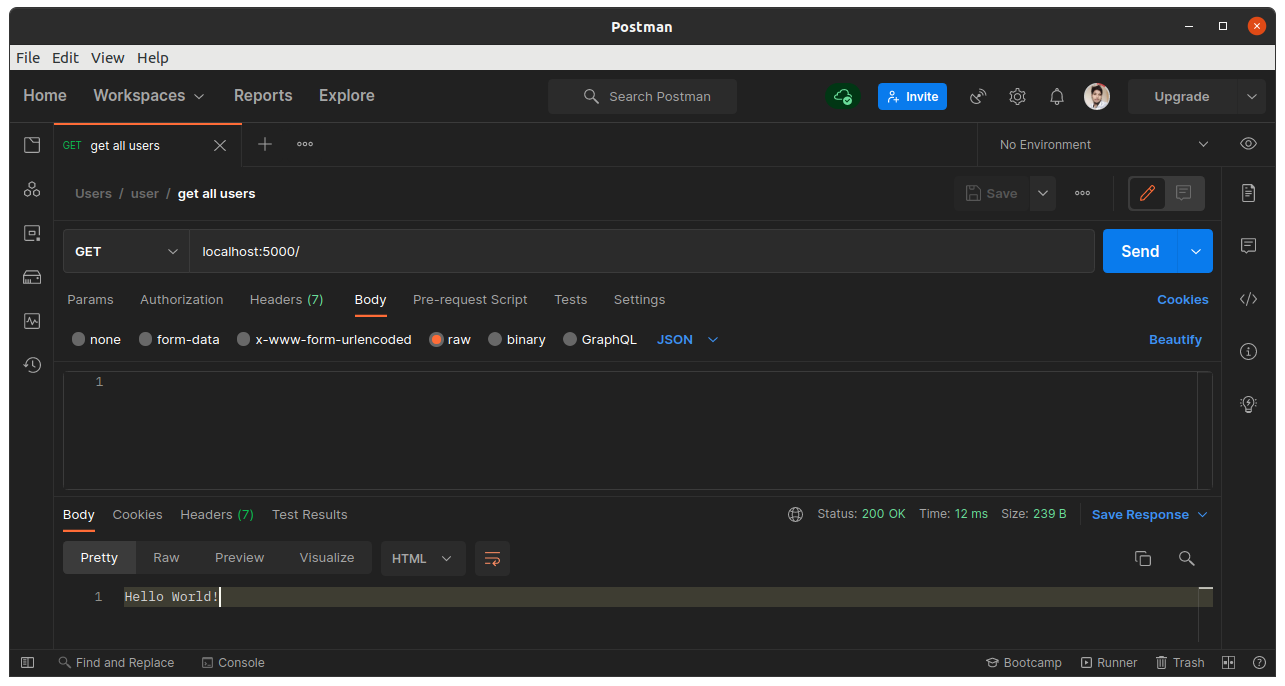
As you can see in the image above, status 200 is received implying that the request was successful and the resource has been fetched. More information related to the API call can be found under the Headers. You can also save the request by clicking on the save button and adding it to a collection in Postman.
Code
You can download the related code from here or clone the repository, and checkout to the example/basic-code branch.
git clone https://github.com/mrizwanashiq/learning-express-js.git
cd learning-express-js
git checkout example/basic-code
If you already have the repository cloned, you can pull the latest changes from the remote repository and checkout to the example/basic-code branch.
git pull
git checkout example/basic-code
Summary
In this article, we learned how to create a simple Node.js application using Express.js. We also learned how to test the API using Postman.