Git History
Overview
After you have created several commits, or if you have cloned a repository with an existing commit history, you'll probably want to look back to see what has happened. The most basic and powerful tool to do this is the git log command.
Git History
In a repository, the history of commits is stored in a linked list. Each commit has a pointer to its parent commit. The first commit in the repository is called the root commit. The root commit has no parent commit. The last commit in the repository is called the HEAD commit. The HEAD commit has no child commit.
There is two kinds of git history:
Linear History
A linear git history refers to a commit history where commits are made in a chronological order (order in which the events occurred, from first to last), one after the other, without any merging or branching. This results in a straight line of commits, where each commit builds on the previous one.
Linear git history is considered good for several reasons:
- Easier to understand: A linear git history is easy to understand and navigate, as it clearly shows the chronological order of changes and the relationships between commits. This can be especially useful for teams that have multiple developers working on the same project.
- Better for traceability: A linear git history can be useful for traceability and auditing purposes, as it clearly shows when and how changes were made.
- Easier to revert: A linear git history makes it easy to revert to a previous version of the codebase by checking out a specific commit.
- Better for long-term projects: A linear git history can be useful for long-term projects, as it allows for a clear understanding of the evolution of the codebase over time.
See the example below:
* c6121fd (HEAD -> master, topic/feature) fixes issue with feature
* fcbba2d adds blah to feature
* 2e09b2a adds feature foo
* 2985b6b blah blah
* ebe0262 blah
* 03f4f8d previous commit
* 62a0ee9 ...
Above is an example of a linear git history. You can see that the commit 62a0ee9 is the first commit in the history, and the commit c6121fd is the last commit in the history. And each commit builds on the previous one, as the commit c6121fd is a child of the commit fcbba2d, which is a child of the commit 2e09b2a, and so on.

Non-Linear History
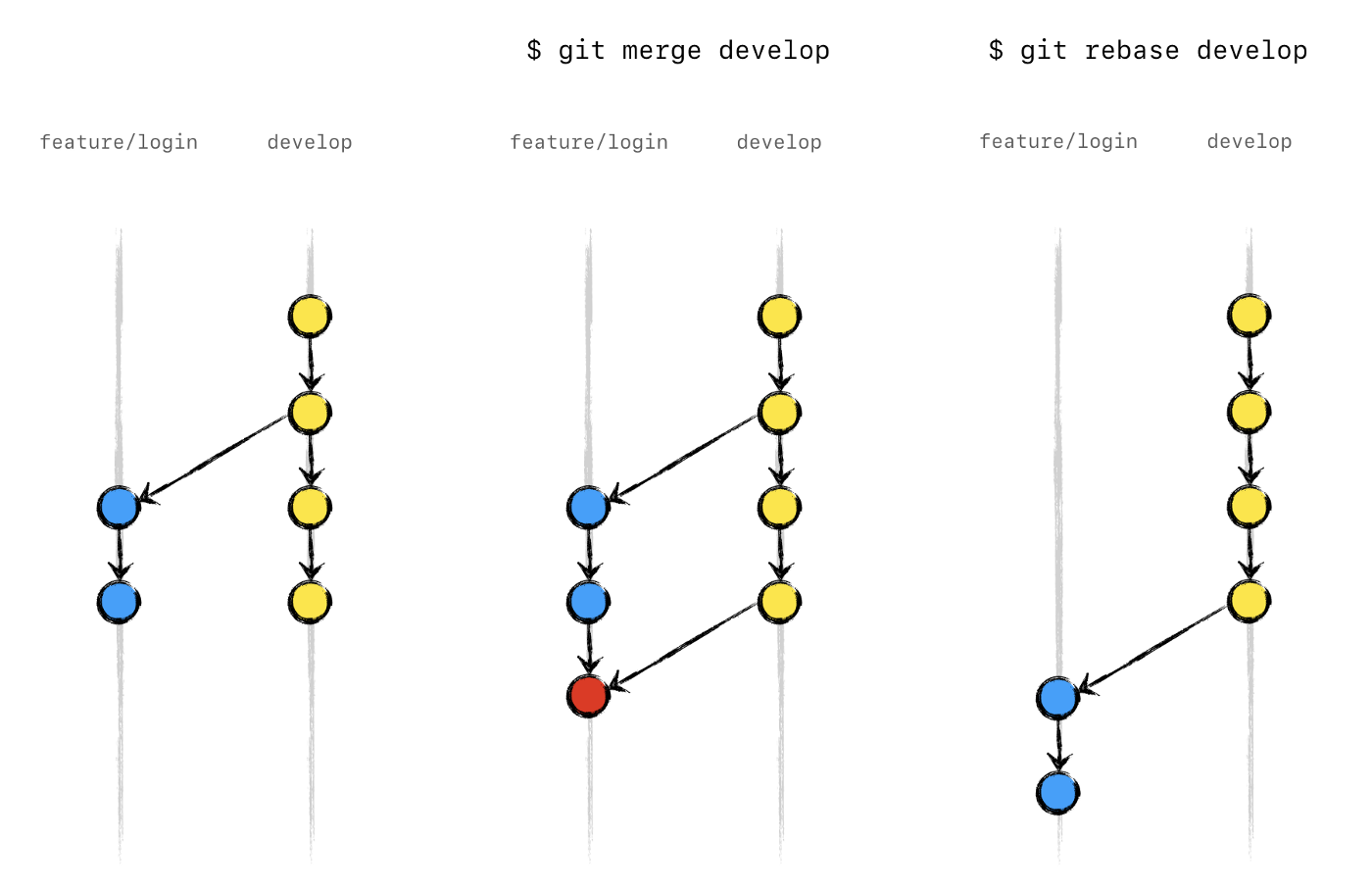
A non-linear git history refers to a commit history where commits are made in a non-chronological order, with multiple branches and merges. This results in a complex history, with multiple lines of commits, where each commit may not build on the previous one.
Non-linear git history is considered good for several reasons:
- Preserved history: A non-linear git history preserves the commits from all branches, allowing for a better understanding of the relationships between branches and the evolution of the codebase over time.
- Better for collaboration: A non-linear git history allows for multiple developers to work on the same feature branch simultaneously, making it easier to collaborate and share changes.
- Better for shared branches: A non-linear git history can be useful for shared branches, as it allows for a clear record of when changes were made and by whom, making it easier to understand the relationships between branches and the changes that have been made.
- Better for projects with strict version control: A non-linear git history can be useful for projects with strict version control requirements, as it creates a clear record of when changes were made and by whom, making it easier to comply with auditing and traceability requirements.
See the example below:
*   f17ba26 (HEAD -> master) Merge branch 'topic/feature'
|\
| * cba1d40 (topic/feature) fixes issue with feature
| * 8b29f74 adds blah to feature
| * 7f295dd adds feature foo
* | 2985b6b blah blah
* | ebe0262 blah
|/
* 03f4f8d previous commit
* 62a0ee9 ...
Above is an example of a non-linear git history. As you can see, the commits are made in a non-chronological order, with multiple branches and merges. This results in a complex history, with multiple lines of commits, where each commit may not build on the previous one.
You can see that the commit 62a0ee9 is the first commit in the history, and the commit f17ba26 is the last commit in the history. And each commit may not build on the previous one, and may be a child of multiple commits, as the commit f17ba26 is a child of the commit 2985b6b and the commit ebe0262, which are both children of the commit 03f4f8d, and so on.
Commit history basics
Start with a simple history example: a repo with three linear commits.
Three commits in a line

Commit A is the parent of commit B, and commit B is the parent of commit C. This history looks very similar to a CVCS. The arrow pointing to commit C is a branch. Branches are pointers to specific commits, which is why branching is so lightweight and easy in Git.
In Git each developer has their own full copy of the repo. They need to keep their local repository in sync with the remote repository by getting the latest commits from the remote repository. To do this, they pull the main branch with the following command:
git pull origin main
This merges all changes from the main branch in the remote repository, which Git names origin by default. This pull brought one new commit and the main branch in the local repo moves to that commit.
A fourth commit, D, is added to the line
Understand branch history
Now it's time to make a change to the code. It's common to have multiple active branches when working on different features in parallel. This is in stark contrast to CVCS where new branches are heavy and rarely created. The first step is to checkout to a new branch using the following command:
git checkout -b cool-new-feature
This is a shortcut combining two commands:
git branch cool-new-featureto create the branchgit checkout cool-new-featureto begin working in the branch
Branch cool-new-feature is added
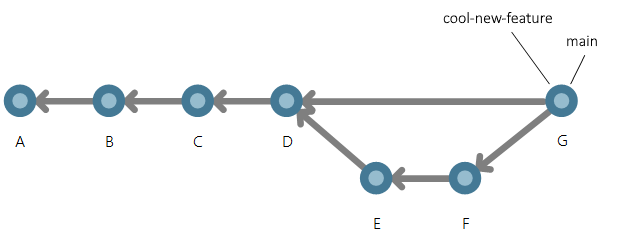
Two branches now point to the same commit. Suppose there are a few changes on the cool-new-feature branch in two new commits, E and F.

Add commits to a branch
The commits are reachable by the cool-new-feature branch since they were committed to that branch. Now that the feature is done, it needs to be merged into the main branch. To do that, switch to the branch that should receive the changes, then merge:
git switch main
git merge cool-new-feature
Merge a branch
The graph structure of history becomes visible when there's a merge. Git creates a new commit when the branch is merged into another branch. This is a merge commit. There aren't any changes included this merge commit since there were no conflicts. If there were conflicts, the merge commit would include the changes needed to resolve them.
History in the real world
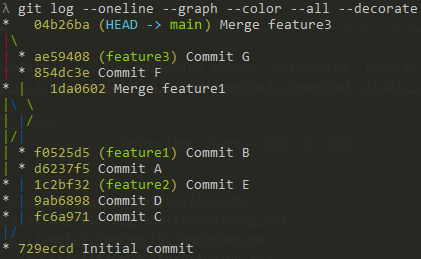
Here's an example of Git history that more closely resembles code in active development on a team. There are three people who merge commits from their own branches into the main branch around the same time.
git log
The git log command is used to show the commit history of a git repository. It shows the commit hash of each commit. It also shows the commit message, the author, the committer, the timestamp, and the parent commit.
git log
Result:
commit 62a0ee91b2b9c1e2e3f4a5b6c7d8e9f0a1b2c3d4
Author: mrizwanashiq <mrizwanashiq@outlook.com>
Date:   2021-07-01 12:00:00 +0000

    Add a new file

commit 62a0ee91b2b9c1f2e3f4a5b6c7d8e9f0a1b2c3d4
Author: mrizwanashiq <mrizwanashiq@outlook.com>
Date:   2021-07-01 01:00:00 +0000

    Added another file
git log also has a lot of options, let's take a look at some of them.
git log --oneline
The --oneline option shows the commit hash and the commit message in one line.
git log --oneline
Result:
62a0ee9 (HEAD -> main) Add a new file
62a0ea9 Added another file
git log --graph
Shows the commit history as a graph.
git log --graph
Result:
* 62a0ee9 (HEAD -> main) Add a new file
* 62a0ea9 Added another file
git log --follow <file>
Shows the commit history of a file. It also shows the commit hash of the file.
git log --follow file.txt
Result:
commit 62a0ee91b2b9c1e2e3f4a5b6c7d8e9f0a1b2c3d4
Author: mrizwanashiq <mrizwanashiq@outlook.com>
Date:   2021-07-01 12:00:00 +0000

    Add a new file

 file.txt | 1 +
 1 file changed, 1 insertion(+)

commit 62a0ee91b2b9c1f2e3f4a5b6c7d8e9f0a1b2c3d4
Author: Rizwan Ashiq <mrizwanashiq@outlook.com>
Date:   2021-07-01 01:00:00 +0000

    Added another file

 file.txt | 1 +
 1 file changed, 1 insertion(+)
git log -S <string>
The -S option (known as the "pickaxe") finds commits whose changes added or removed the given string in the code — not commits with that message. It's the fastest way to answer "which commit introduced or deleted this line?"
git log -S "calculateDiscount"
To search commit messages instead, use --grep:
git log --grep="login"
Result:
commit 62a0ee91b2b9c1e2e3f4a5b6c7d8e9f0a1b2c3d4
Author: mrizwanashiq <mrizwanashiq@outlook.com>
Date:   2021-07-01 12:00:00 +0000

    Add login form validation
git log --author=<author>
Shows the commit hash of a specific author.
git log --author="Rizwan Ashiq"
Result:
commit 62a0ee91b2b9c1e2e3f4a5b6c7d8e9f0a1b2c3d4
Author: mrizwanashiq <mrizwanashiq@outlook.com>
Date:   2021-07-01 12:00:00 +0000

    Add a new file

 file.txt | 1 +
 1 file changed, 1 insertion(+)
git log --committer=<committer>
List the commit hash of a specific committer.
git log --committer="Rizwan Ashiq"
Result:
commit 62a0ee91b2b9c1e2e3f4a5b6c7d8e9f0a1b2c3d4
Author: mrizwanashiq <mrizwanashiq@outlook.com>
Date:   2021-07-01 12:00:00 +0000

    Add a new file

 file.txt | 1 +
 1 file changed, 1 insertion(+)
git log --since=<date>
Shows the commit hash of commits that are newer than the specified date.
git log --since="2021-07-01"
Result:
commit 62a0ee91b2b9c1e2e3f4a5b6c7d8e9f0a1b2c3d4
Author: mrizwanashiq <mrizwanashiq@outlook.com>
Date:   2021-07-01 12:00:00 +0000

    Add a new file

 file.txt | 1 +
 1 file changed, 1 insertion(+)
git log --until=<date>
Shows the commit hash of commits that are older than the specified date.
git log --until="2021-07-01"
Result:
commit 62a0ee91b2b9c1f2e3f4a5b6c7d8e9f0a1b2c3d4
Author: Rizwan Ashiq <mrizwanashiq@outlook.com>
Date:   2021-07-01 01:00:00 +0000

    Added another file

 file.txt | 1 +
 1 file changed, 1 insertion(+)
Summary of the options
| Option | Description |
|---|---|
--oneline | Shows the commit hash and the commit message in one line. |
--graph | Shows the commit history as a graph. |
--stat | Shows the commit hash, the commit message, the author, the committer, the timestamp, the parent commit, and the number of files changed and the number of lines added and removed. |
--follow <file> | Shows the commit history of a file. It also shows the commit hash of the file. |
-S <string> | The "pickaxe" — shows commits whose changes added or removed the given string in the code. |
--grep=<pattern> | Shows commits whose commit message matches the pattern. |
--author=<author> | Shows the commit hash of a specific author. |
--committer=<committer> | Shows the commit hash of a specific committer. |
--since=<date> | Shows the commit hash of commits that are newer than the specified date. |
--until=<date> | Shows the commit hash of commits that are older than the specified date. |